
For Loop Iteration
[separator style_type=”shadow” top_margin=”-110″ bottom_margin=”100″ sep_color=”” icon=”” width=”” class=”” id=””][fullwidth backgroundcolor=”” backgroundimage=”” backgroundrepeat=”no-repeat” backgroundposition=”left top” backgroundattachment=”scroll” video_webm=”” video_mp4=”” video_ogv=”” video_preview_image=”” overlay_color=”” overlay_opacity=”0.5″ video_mute=”yes” video_loop=”yes” fade=”no” bordersize=”” bordercolor=”” borderstyle=”” paddingtop=”0px” paddingbottom=”0px” paddingleft=”0px” paddingright=”0px” menu_anchor=”yes” equal_height_columns=”no” hundred_percent=”no” class=”no” id=”0px”][one_sixth last=”no” spacing=”yes” background_color=”” background_image=”” background_repeat=”no-repeat” background_position=”left top” border_size=”0px” border_color=”” border_style=”” padding=”” class=”yes” id=””][/one_sixth][two_third last=”no” spacing=”yes” background_color=”” background_image=”” background_repeat=”no-repeat” background_position=”left top” border_size=”0px” border_color=”” border_style=”” padding=”” class=”yes” id=””][fusion_text]There are a few functions so useful that you find them everywhere. The ‘for loop’ is an example of this type. A For Loop repeats an action for a specified number of iterations, reducing the lines of code that need to be written thus making the programmers life easier.
In this example we are setting out to make a row of LEDs light up somewhat similar to Kit in Knight Rider.
You Will Need
- LED (6)
- 220 Ohm Resistor (6)
- Solder-less Breadboard
- Jumper Wires (1)
- Red Canary (42)
Step-by-Step Instructions
- Connect one side of a resistor into pin 2, connect the other side into a row on the breadboard.
- From that row in the breadboard where you attached the resistor, connect the long leg of the LED.
- Connect the short leg of the LED to one of the power strip columns on your breadboard.
- Now connect a resistor to pin 3, and put the other leg in a row on the breadboard (a different one then your first LED.
- Connect an LED in the same manor – make sure the short leg goes in the SAME power strip column as the previous LED.
- Repeat this through pin 7.
- Using a jumper wire, connect the common power strip to a GND pin on the Arduino.
- Connect the Arduino to your computer.
- Open up the Arduino IED.
- Go to File > Examples > 05.Control > ForLoopIteration
- Click the Verify button (Top Left). The button will turn orange and then blue once finished.
- Click the Upload button. The button will turn orange and then blue when finished.
- Watch in awe as your LEDs turn on and off in sequence.
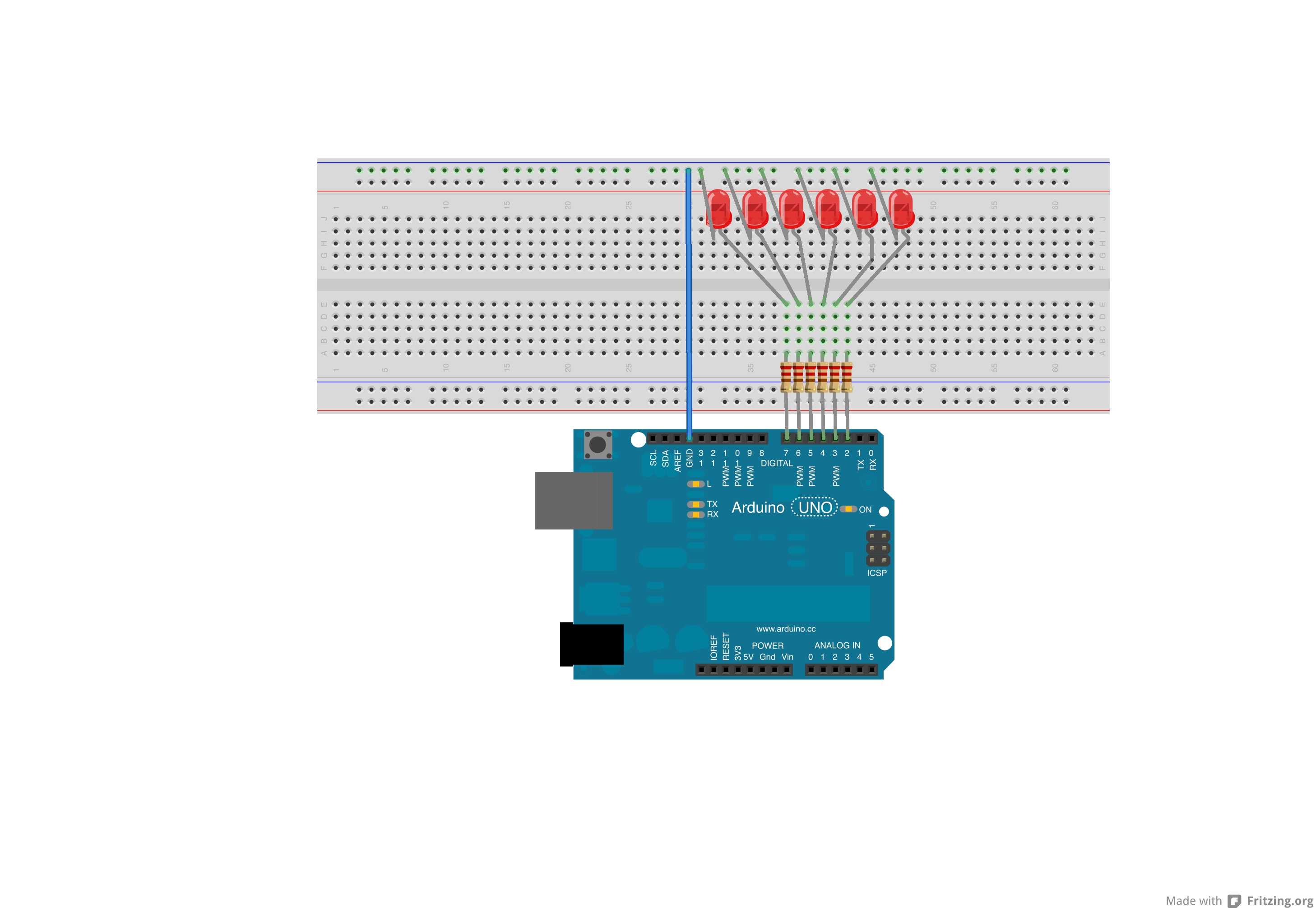 This image made with Fritzing.
Discuss the Sketch
Below is the sketch in its entirety from the Arduino IDE. Try to read through this first…
/*
  For Loop Iteration

 Demonstrates the use of a for() loop.
 Lights multiple LEDs in sequence, then in reverse.

 The circuit:
 * LEDs from pins 2 through 7 to ground

 created 2006
 by David A. Mellis
 modified 30 Aug 2011
 by Tom Igoe

This example code is in the public domain.

 http://www.arduino.cc/en/Tutorial/ForLoop
 */

int timer = 100;           // The higher the number, the slower the timing.

void setup() {
  // use a for loop to initialize each pin as an output:
  for (int thisPin = 2; thisPin < 8; thisPin++)  {
    pinMode(thisPin, OUTPUT);
  }
}

void loop() {
  // loop from the lowest pin to the highest:
  for (int thisPin = 2; thisPin < 8; thisPin++) {      // turn the pin on:     digitalWrite(thisPin, HIGH);        delay(timer);                       // turn the pin off:     digitalWrite(thisPin, LOW);       }   // loop from the highest pin to the lowest:   for (int thisPin = 7; thisPin >= 2; thisPin--) {
    // turn the pin on:
    digitalWrite(thisPin, HIGH);
    delay(timer);
    // turn the pin off:
    digitalWrite(thisPin, LOW);
  }
}
The first executable code we find is the declaration of the ‘timer’ variable…
int timer = 100; // The higher the number, the slower the timing.
This integer variable with a descriptive name will set the rate between one LED turning on and off. What is so important about variables like these is how easy they allow you to alter your code and how your circuit will run.
If the programmer had written the number 100 in a bunch of functions through out this program we would have had the exact same effect, but as soon as we want to speed up the blinking of the LEDs, now we have to go through and change every 100 to a 500 – what a pain – especially when you miss a couple 100’s, and accidentally put a 500 where there shouldn’t have bee one.
These variables are like controls into your program – imagine you are on the Star Ship Enterprise, all those buttons and touch screen levers – these are your control variables.
Our next friendly block of code is setup(). In this setup() function we run into our first For Loop.
void setup() {
for (int thisPin = 2; thisPin < 8; thisPin++) {
pinMode(thisPin, OUTPUT);
}
}
Let’s consider just what is inside the parenthesis following the for loop..
for (int thisPin = 2; thisPin < 8; thisPin++)
There are three separate statements in the parenthesis separated by a semicolon. The first statement is initialization of the counter variable used in the ‘for loop’ and it looks like any other variable declaration and initialization that you have seen.
int thisPin = 2;
The ‘thisPin’ variable is what will be used in the next block of code – or the test.
thisPin < 8;
This is the test condition that will tell the loop to keep going or to stop. If this condition is TRUE, the code in the curly brackets of the ‘for loop; will be executed again, if the condition is FALSE, the program will stop executing the statement in the ‘for loop’ and move on in the program.
So when we first start this test, the ‘thisPin’ variable equals 2 and the test is..
2 < 8
We know that 2 is less than 8, so we will execute the code in the curly brackets of the ‘for loop’. The final statement is …
thisPin++
I know, looks like a spin on Goggle+, but it’s not. The ‘++’ is a handy incrimination syntax. It means the same thing as “Add 1 to the value of variable thisPin” or, written another way…
thisPin = thisPin + 1 <=> thisPin++
The last statement is what increments the counter variable. Now it can increment it up with the ‘++’ or, we could decrement it with ‘- -‘ . Or you could write..
thisPin= thisPin/42
thisPin += 42 //the += mean “add 42 to the variable on the left” – just some handy //syntax shortcuts
thisPin -=42 //the -= mean “subtract 42 to the variable on the left” – another handy //syntax shortcuts
For this matter you can increment however you want to. Usually we increment by 1 – because that suits our needs. Just keep in mind that you can increment however you want.
So enough about incrementing! What the heck is the point already!? Ok, here is the deal…if the condition of the for loop is met, then code in the curly brackets gets executed and the counter variable gets incremented. The next time through the ‘for loop’, if the condition is still met, then the code once again gets executed and the counter variable is incremented again. Eventually your counter variable will grow large enough and the condition will no longer be satisfied and the for loop will end.
for (int thisPin = 2; thisPin < 8; thisPin++) {
pinMode(thisPin, OUTPUT);
}
In this example, when the thisPin variable gets larger than 7, the loop will stop.
What is awesome about the counter variable is that we usually use it inside the for loop to help do something. In this case, the code that gets executed is…
pinMode(thisPin, OUTPUT);
You are familiar with the pinMode() function – it sets the mode of a pin. Here the number of the pin is specified by the counter variable. So what happens here. The first time through the for loop, the thisPin variable is equal to 2. Since 2 is less than 8 (the test condition), we go ahead and execute the code inside the curly brackets –
pinMode(thisPin, OUTPUT);
(2) //Pin 2 is set as OUTPUT
After the ‘for loop’ ends the first time, we increment thisPin (thisPin++) so it now holds the value 3.
Now we check the condition again, and since 3 is indeed less than 8, we execute the code again…
pinMode(thisPin, OUTPUT);
(3) //Pin 3 is set as OUTPUT
After the ‘for loop’ ends the second time, we increment thisPin like before so it now holds the value 4. We check the condition – we know 4 is less than 8, so we execute the code again….
pinMode(thisPin, OUTPUT);
(4) //Pin 4 is set as OUTPUT
This incrementing and condition testing goes on until thisPin = 8, here the test condition is not met, and the ‘for loop’ ends – and all out our pins have their mode set.

Seems a bit convoluted maybe? Consider a for loop verse what “hard coding” it would have been…
pinMode(2, OUTPUT);
pinMode(3, OUTPUT);
pinMode(4, OUTPUT);
pinMode(5, OUTPUT);
pinMode(6, OUTPUT);
pinMode(7, OUTPUT);
You can see that the ‘for loop’ saved us a lot of typing! With a ‘for loop’ if you want to add 3 LEDs, all you have to do is change the test condition. In the hard coding version you have to add three more pinMode() functions to get the same result. Efficiency rocks – stay away from hard coding.
So that is a ‘for loop’ lets see else how we can use ‘for loops’. The next block of code we encounter is the loop() function. Notice that the loop() function is like an infinite ‘for loop’. Here we encounter our next ‘for loop’…
for (int thisPin = 2; thisPin < 8; thisPin++) {
digitalWrite(thisPin, HIGH); // turn the pin on:
delay(timer);
digitalWrite(thisPin, LOW); // turn the pin off:
}
We see that all the stuff in the parenthesis following the ‘for loop’ is the same as before. What changes is the code that gets executed. We see that the test condition is met so the code gets executed. The first thing that happen is we use the digitalWrite() function to light up the LED. Recall that digitalWrite() take two arguments – the pin number and the type of output, either HIGH or LOW.
digitalWrite(thisPin, HIGH);
So here we apply HIGH voltage and the LED will turn on. But which LED? The one specified by the counter variable, thisPin. Yes that’s right, the number 2 the first time through.
Let’s enjoy the bright light for a little bit – the delay() function is handy for this. We delay the length of the timer variable which we set above at 100.
delay(timer);
We pause 100 milliseconds and move onto the next command…
digitalWrite(thisPin, LOW);
Now we write low voltage to pin 2, and the LED will turn off.
So what do you suspect happens now? Well our counter variable is incremented and tested again – it ill meet the condition, and now the same thing will happen again, except now the specified pin will be number 3. This will continue all the way down to pin 7, at which point the condition will not be met and this ‘for loop’ will end.
But don’t despair, we have another ‘for loop’! We have to find a way to get back from the last LED lit to where we started down at pin 2.
for (int thisPin = 7; thisPin >= 2; thisPin–) {
// turn the pin on:
digitalWrite(thisPin, HIGH);
delay(timer);
// turn the pin off:
digitalWrite(thisPin, LOW);
}
Now we have changed up some things in the parenthesis. We start the thisPin variable at 7. Our test condition is now “is thisPin greater than or equal to 2?”. Finally our incrementing subtracts 1 from the value of thisPin every time through the ‘for loop’. So now we work backwards down the row, from pin seven to pin 2 – at which point the test condition is not met and this ‘for loop’ ends.
And then we start back at the top of loop() and do it all over. The poor life of a microcontroller – gets a little monotonous I am afraid. Keep in mind that every time a ‘for loop’ starts again, it re-declares and initializes the counter variable to the value you specify.
One thing I think may be appropriate to discuss here is what is called variable scope. The scope of a variable is where it can be used with in a program. The variables that we declare at the top of the program, before setup() and loop(), these have global scope – they can be used anywhere in the program. But the variable declared in the parenthesis of a ‘for loop’, these can only be used inside the ‘for loop’. An indepth discussion on variable scope can be found in Further Reading.
Try On Your Own Challenges
- Adjust the value of the “timer” variable.
- Add additional LEDs at pin 8 and 9. Adjust all three ‘for loop’ statements accordingly.
Further Reading
[/fusion_text][/two_third][one_sixth last=”yes” spacing=”yes” background_color=”” background_image=”” background_repeat=”no-repeat” background_position=”left top” border_size=”0px” border_color=”” border_style=”” padding=”” class=”yes” id=””][/one_sixth][/fullwidth]









